Installations
Install Unity Hub
Unity Hub is the central management tool for all things Unity. Think of it as a "launcher" or a library that holds your projects and the specific versions of the Unity engine required to run them.
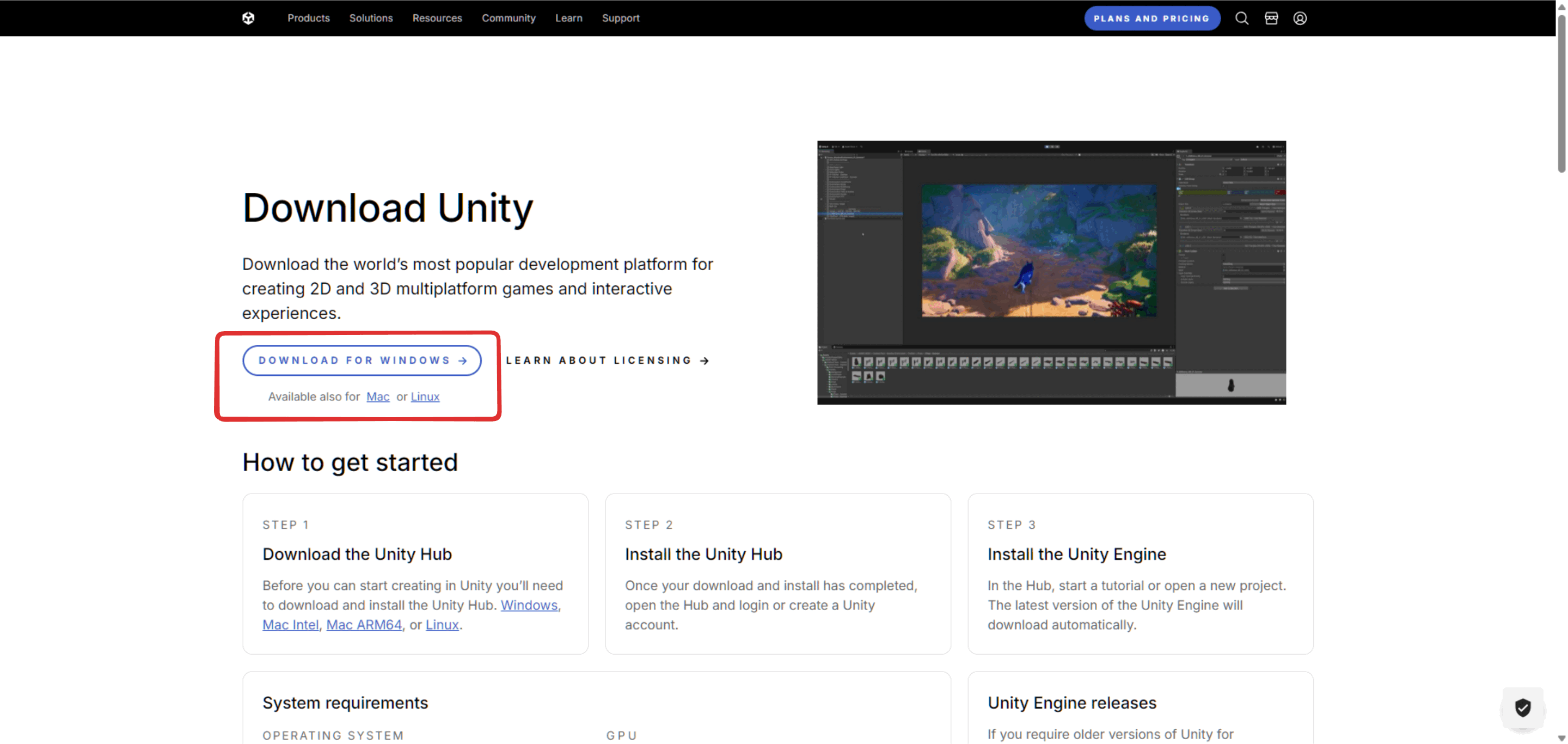
Steps:
- Navigate to
unity.com/downloadin your web browser. - Click the Download Unity Hub button.
- Run the downloaded installer and follow the on-screen installation wizard.
- Once the installation is complete, open Unity Hub.
Note: Unity Hub is separate from the Unity Editor. You will use the Hub to organize your projects, but you will edit the game inside the Editor.
Install Unity Editor
The Unity Editor is the actual application where we build, run, and test the game. We need a specific version to ensure everyone on the team is working with the same tools.
Steps:
- Open the Unity Hub.
- Navigate to the Installs tab on the left sidebar.
- Click the Install Editor button in the top-right corner.
- Locate the latest Unity 6.0 version marked as (LTS).
- Note: The full version number might look like
6000.0.59f2, but the important part is ensuring it is the6.0 LTSrelease.
- Note: The full version number might look like
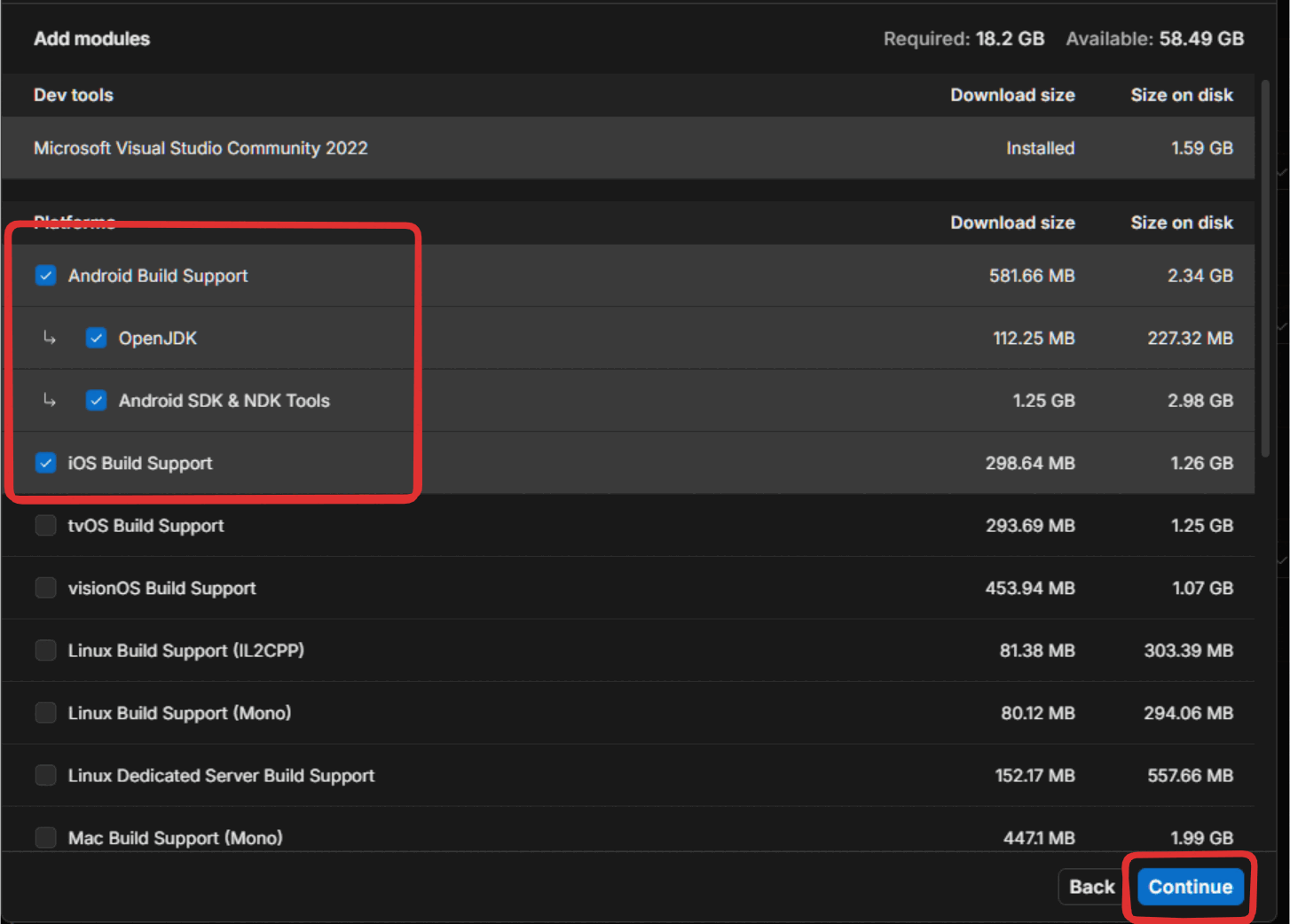
- Click Install. When prompted to select modules, ensure the following are checked:
- Android Build Support (including SDK, NDK, & JDK Tools)
- iOS Build Support
- Click Continue.
- Wait for the download and installation to complete.
What is LTS? LTS stands for "Long-Term Support." These versions are the most stable and recommended for production, as they receive critical updates without changing the way the tools work.
Install Visual Studio Code and YarnSpinner
Visual Studio Code (VS Code) is the recommended text editor for writing our interactive stories. While Yarn files are just text, using VS Code with the specialized Yarn Spinner extension provides color-coding and error checking, making scripts much easier to write and debug.
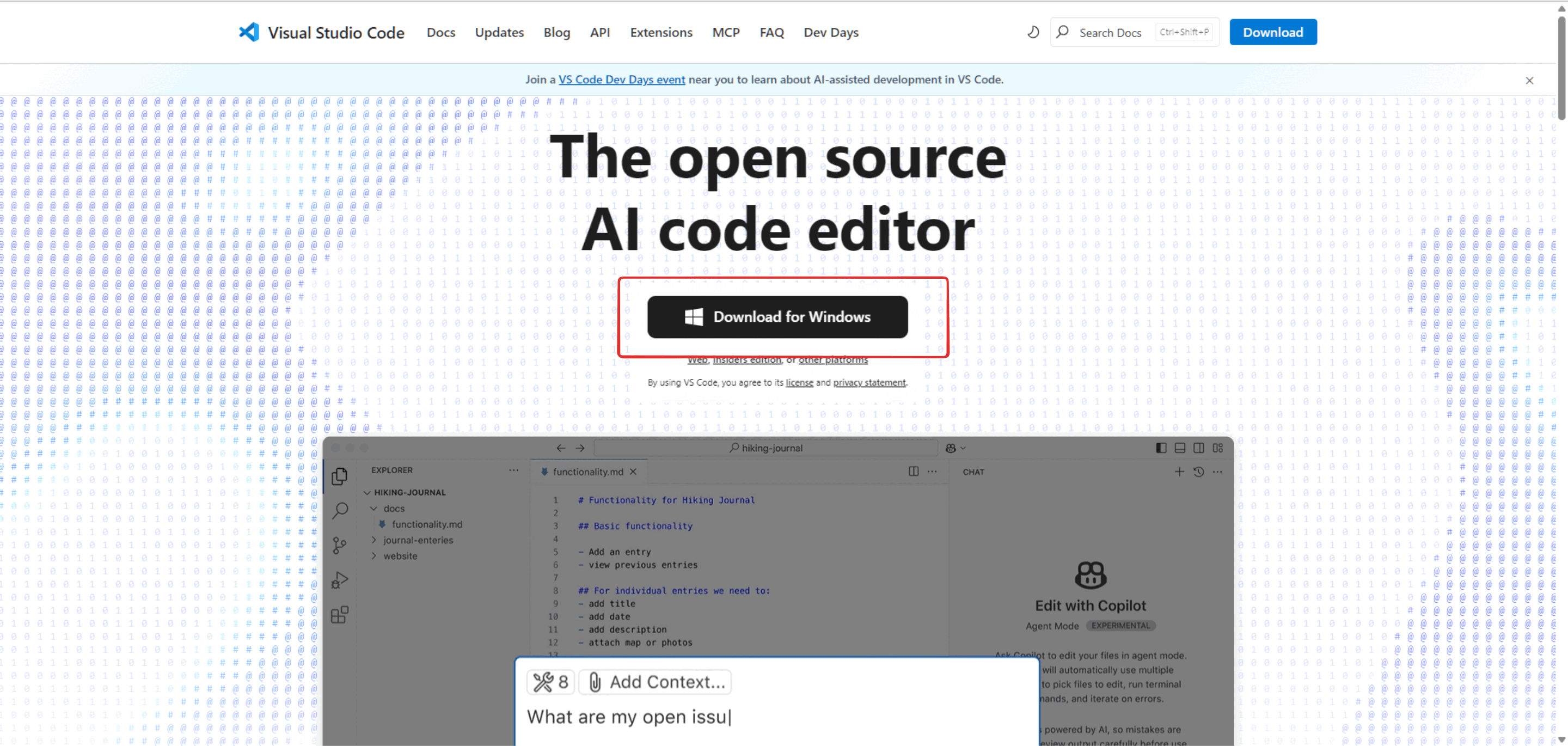
Steps:
- Go to
code.visualstudio.comin your web browser. - Click the Download button for your operating system (Windows or macOS).
- Run the downloaded file and follow the installation wizard.
- Open Visual Studio Code after installation.
- Click the Extensions icon in the left sidebar (it looks like four squares arranged in a box).
- Type "Yarn Spinner" into the search bar.
- Find the official extension and click Install.

Install Git
Git is a tool that allows your computer to synchronize with our project storage. You likely won't need to open this program directly, but it is required to download and open the project files initially.
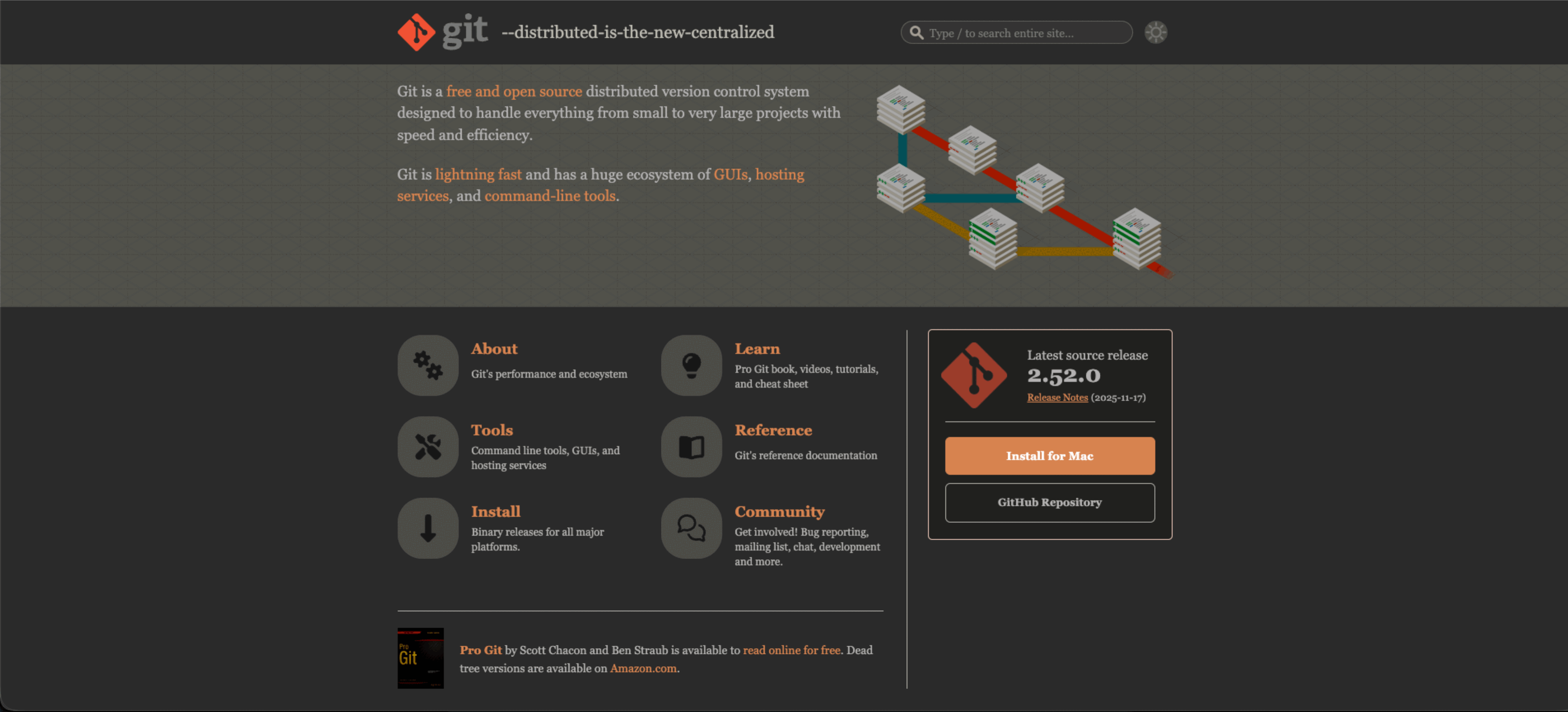
Steps:
- Go to
git-scm.com/downloadsin your web browser. - Download the installer for your operating system.
- Run the installer.
- Note: You can leave all settings on their default options by clicking "Next" through the setup wizard.
- Once installed, you may need to restart your computer for Unity to recognize it.