Opening the Project
Download Project Files
First, download the project files and extract them to a known location on your computer (e.g., C:\Projects or ~/Documents/Projects).
Open the Project in Unity Hub
Opening the project in Unity Hub links it to the correct Unity Editor version and gives you access to all story files and testing tools.
Steps:
- Open the Unity Hub.
- Click the
Projectstab on the left sidebar.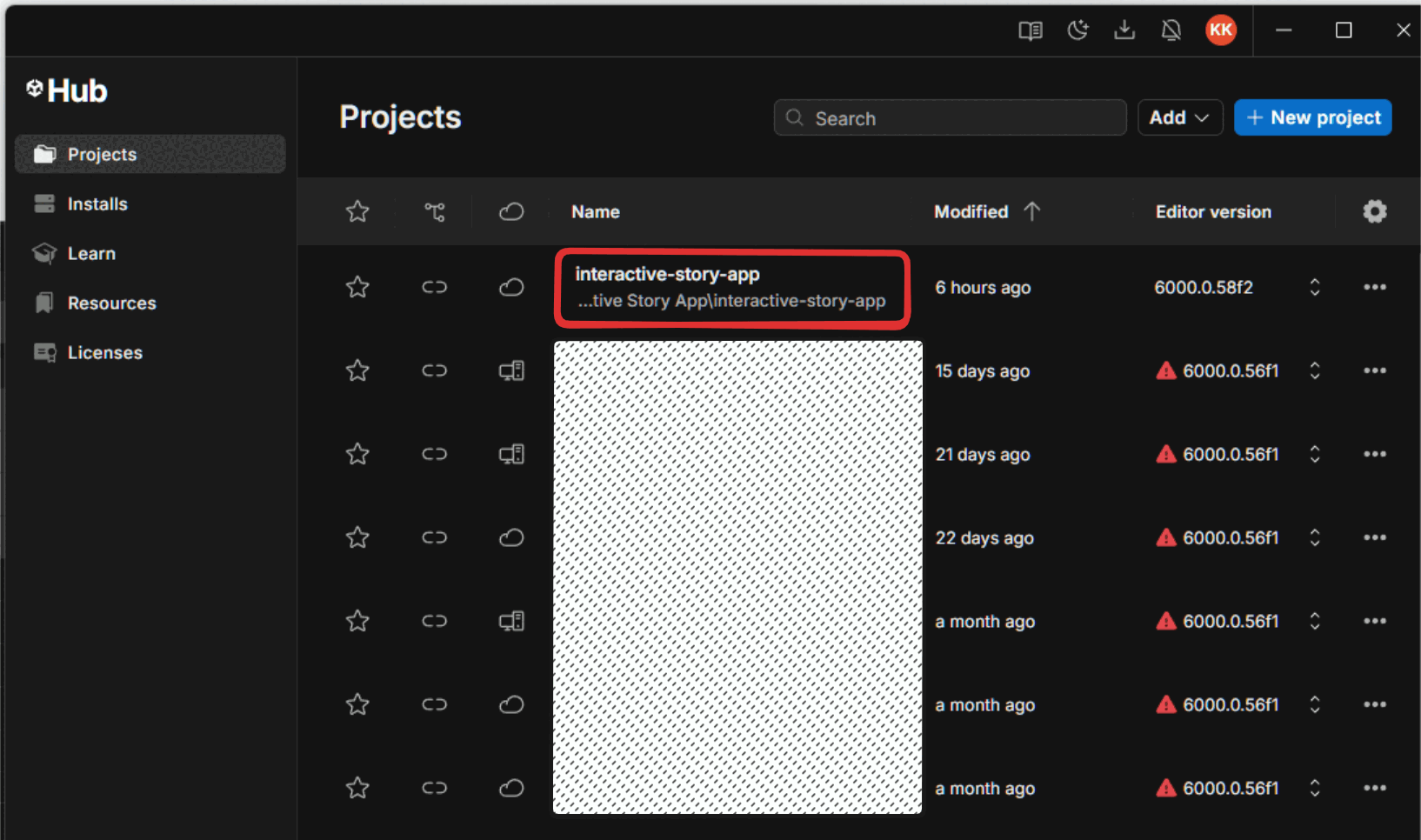
- Click the
Openbutton in the top-right corner. - In the file dialog, navigate to the folder where you extracted the project.
- Select the main project folder and click
Select Folder. - The project will now appear in your projects list. Click on it to open it in the Unity Editor. (The first time you open a project, it may take several minutes to import all assets).
Understanding the Project Structure
The project organizes all files into specific folders. Knowing this structure is essential for locating files and preventing errors.
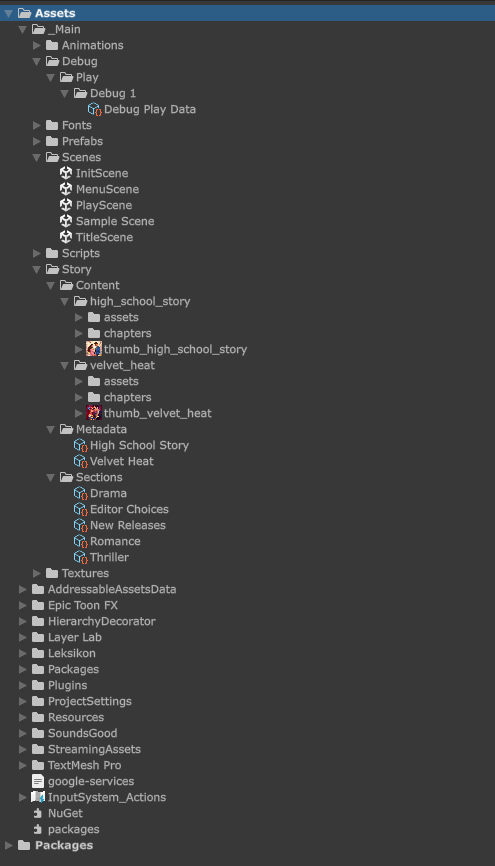
Important Folders:
Assets/_Main/Scenes
Contains the Unity scene files (e.g.,InitScene,MainScene).Assets/_Main/Stage Debug
Contains files used for testing and debugging stories directly within the editor.Assets/_Main/Story/Content
Contains all story assets, including chapter data and thumbnails.Assets/_Main/Story/Metadata
Contains metadata files that define story information (like title, description, author).Assets/_Main/Story/Sections
Contains configuration files for story sections. These categorize stories into different groups, which are then displayed on the game's home page.
Tip: Each story should have its own folder within the relevant directories to keep its content, metadata, and assets organized and separate from other stories.
Running the Project
You can run the project directly inside the Unity Editor to see how the stories will appear to players.
Steps:
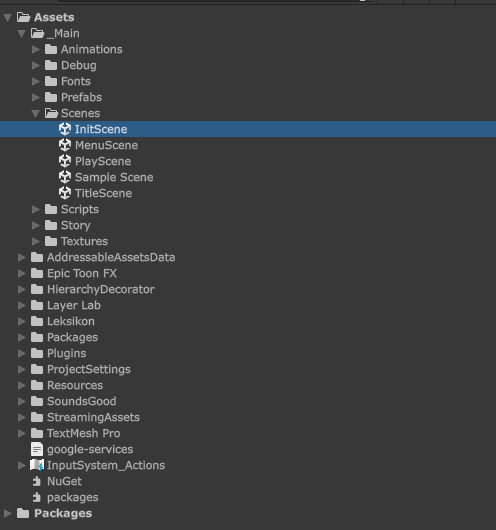
- In the Unity Editor, locate the
Projectpanel (usually at the bottom). - Navigate to the
Assets/_Main/Scenesfolder. - Double-click the
InitScenescene file to open it.
- Click the
Playbutton (a triangle icon) at the top-center of the Unity Editor. - The application will launch in the
Gameview panel. - Click the
Playbutton again to stop running the project.
Important: Changes made while the editor is in "Play Mode" (i.e., after you click Play) are temporary and will be lost when you stop. Always stop Play Mode before making permanent edits.
The Game view panel provides an exact preview of what a player will see on their device.