Internal Testing
Publishes a new Android build of your game to your designated internal testers via the Google Play Console.
info
Before starting, ensure your latest game build is compiled and ready as an Android App Bundle (.aab) file.
Syntax:
Google Play Console > [Your App] > Test and release > Internal testing > Create new release
Parameters:
| Parameter | Type | Options | Description |
|---|---|---|---|
| Platform | Web Portal | Google Play Console | The developer dashboard used to distribute the game. |
| Build File | .aab | Android App Bundle | The compiled game file you will upload into the release track. |
Examples:
Uploading and Publishing a Release:
Follow these steps to successfully deploy your game to your testing team:
- Go to the Google Play Console and select your app. In the left sidebar, navigate to Test and release, then find and select the Internal testing section (similar to the image below).
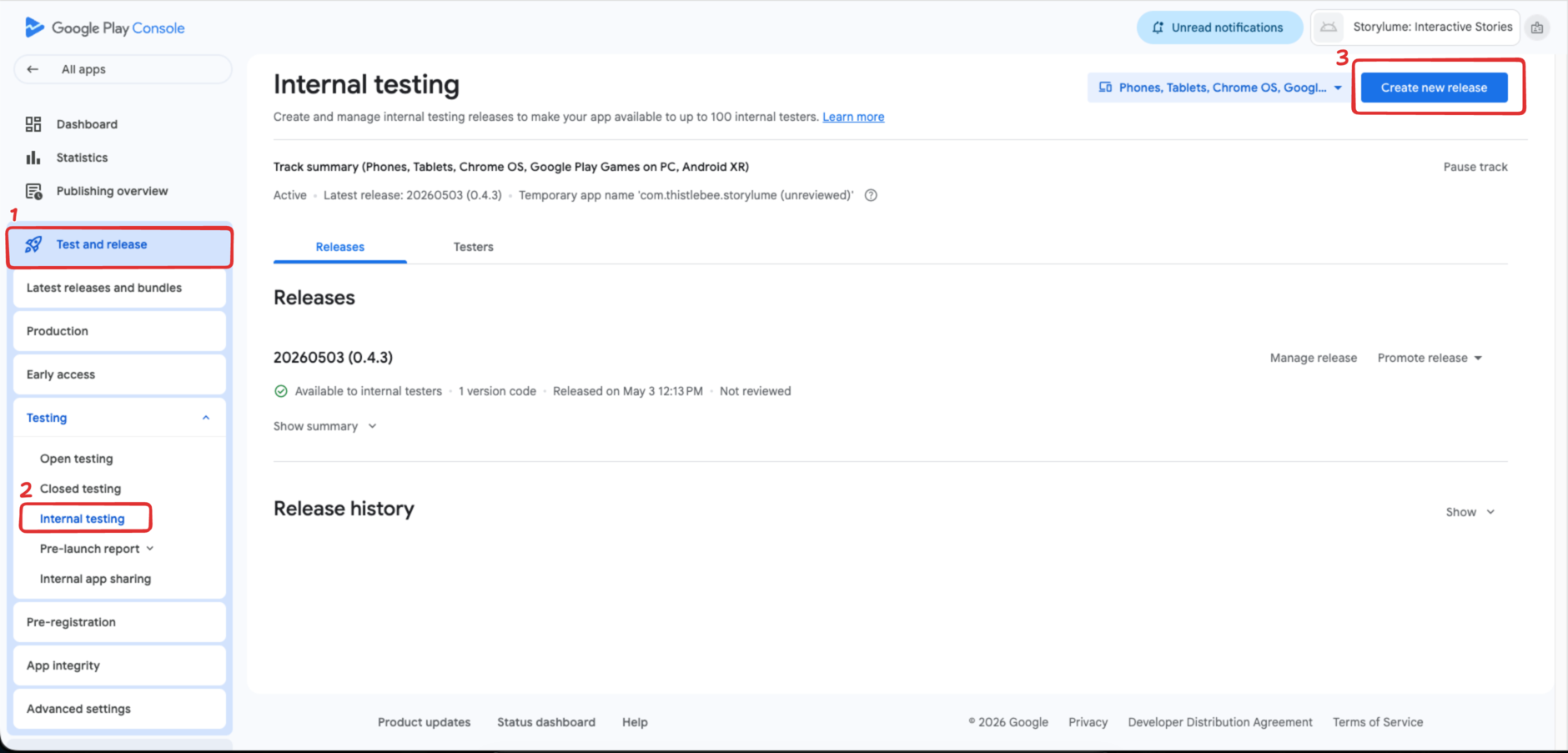
- Click the Create new release button located on the top right.
- Drag and drop your
.aabfile into the App Bundles section. Alternatively, you can click Upload and browse your computer to select the file. - Once the upload is completely finished, click the Next button at the bottom right corner.
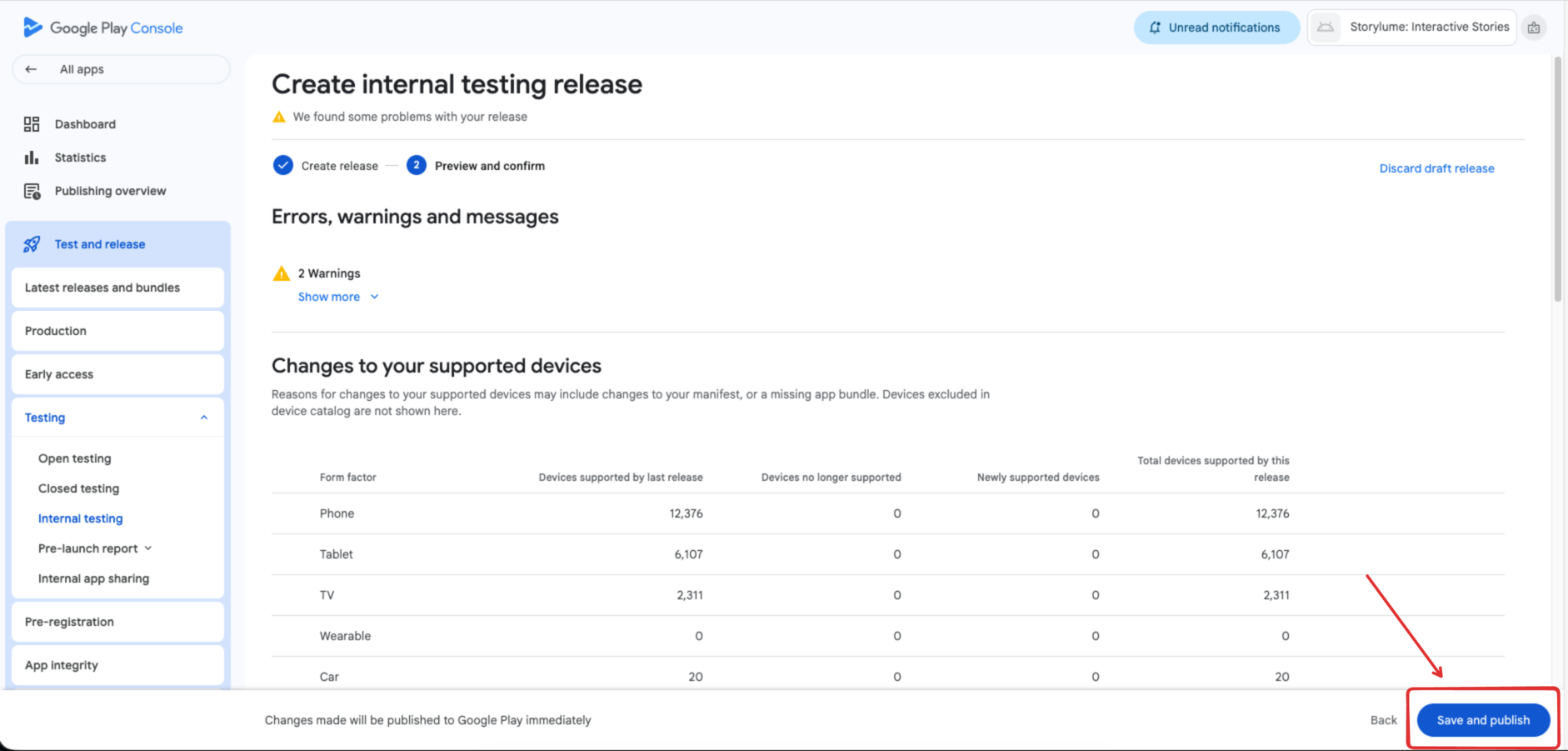
- Scroll down to carefully review the release details. Once everything looks correct, click Save and Publish.
tip
You're all set! Wait a few minutes, and the updated game will automatically become available for download on your registered testers' devices.