Daily Rewards
The Daily Rewards page offers players incentives, such as free gems or currency, to return to the game. Currently, the system supports a Watch Ads category where players can view advertisements in exchange for rewards.
Configuration Overview
To manage the Daily Rewards system, you must access the database asset.
- Navigate to:
Assets > _Main > Reward Option. - Select the file named Reward Option Database.
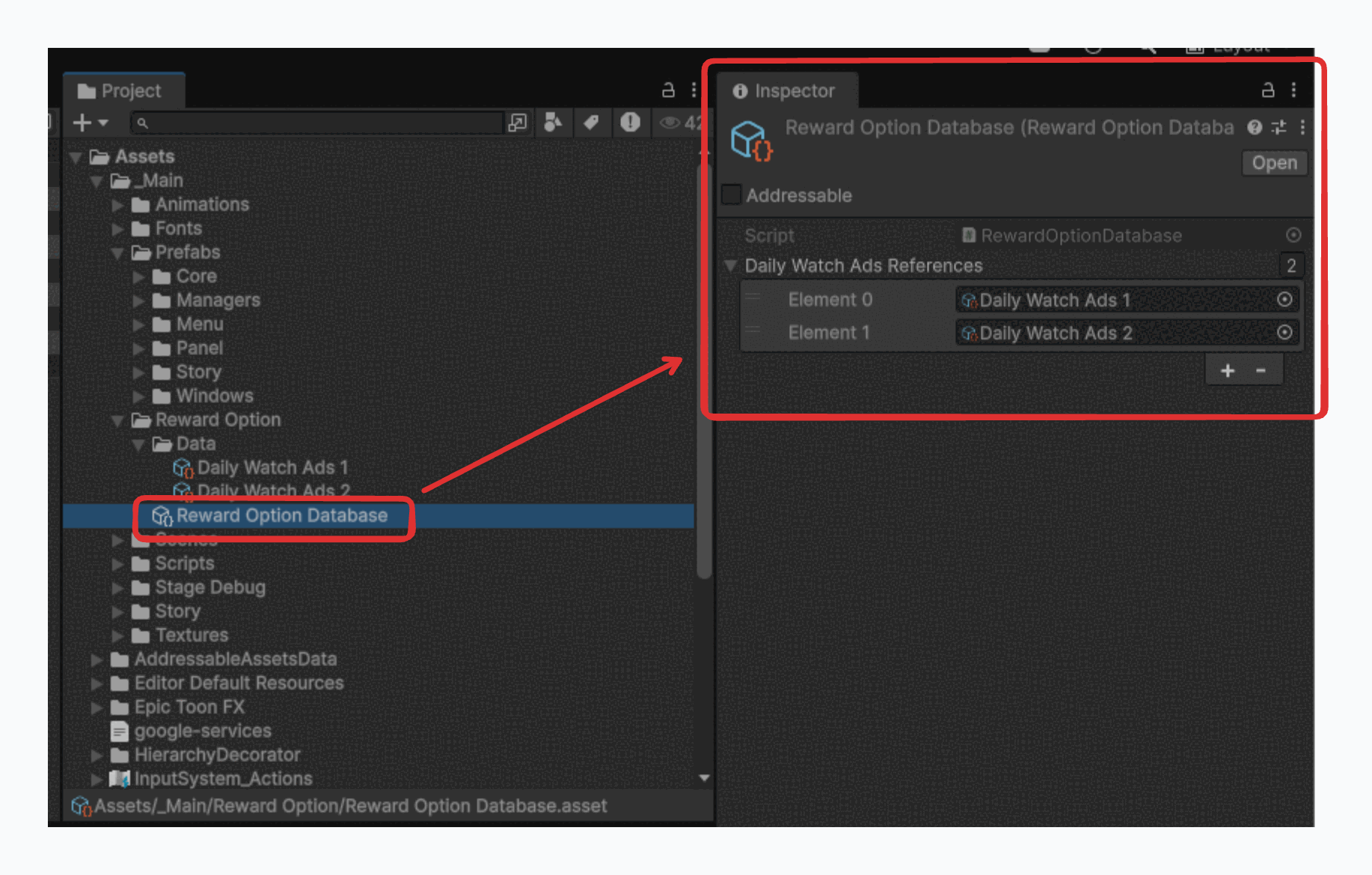
This database acts as the central hub for all available reward categories.
Watch Ads Configuration
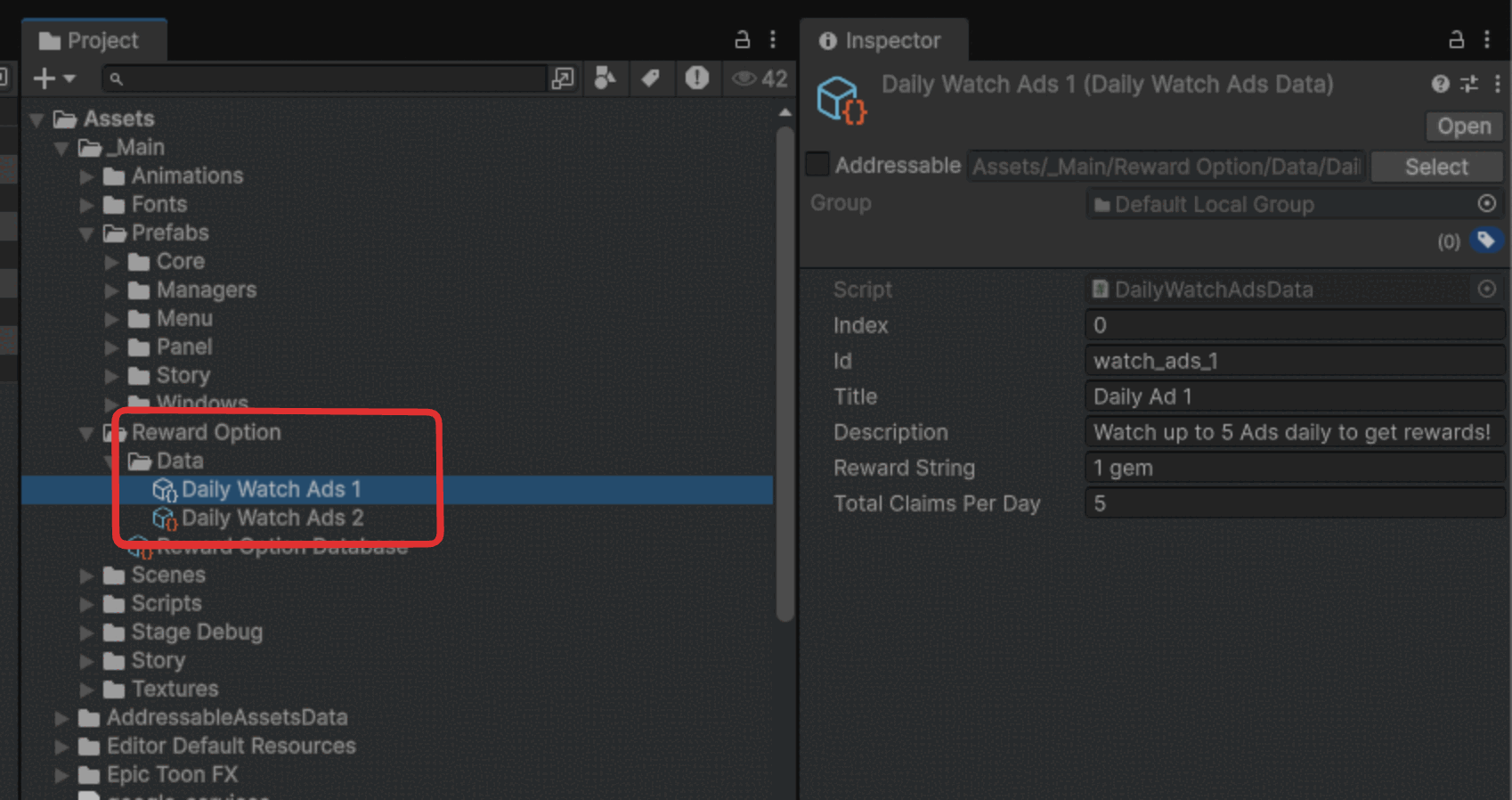
The "Watch Ads" section allows you to define specific ad opportunities (e.g., "Daily Watch Ads 1" for 10 Gems). These data files are stored in a specific directory.
Location: Assets > _Main > Reward Option > Data
Data Properties
When you select a data file (e.g., Daily Watch Ads 1), you will see the following configuration properties in the Inspector:
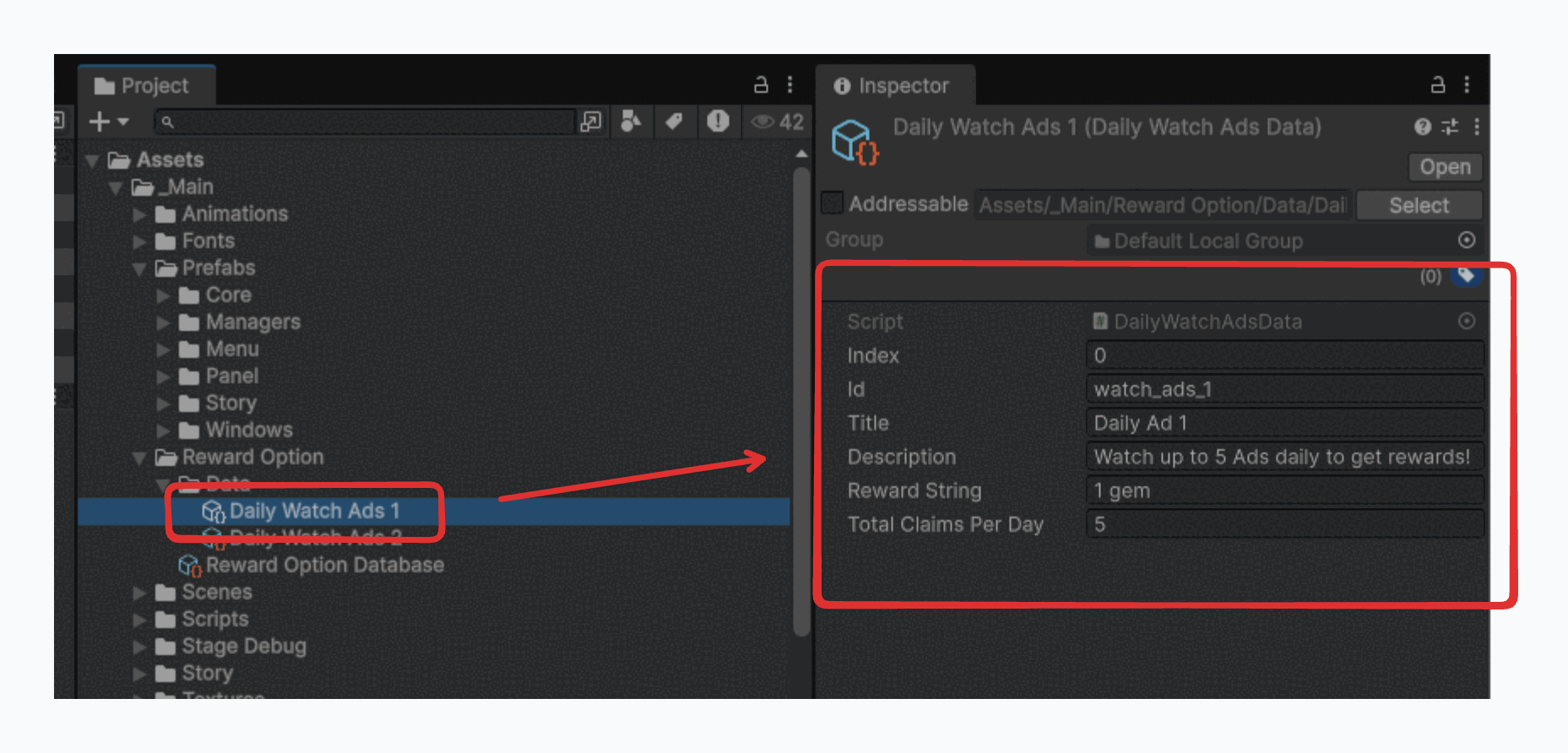
| Property | Type | Description |
|---|---|---|
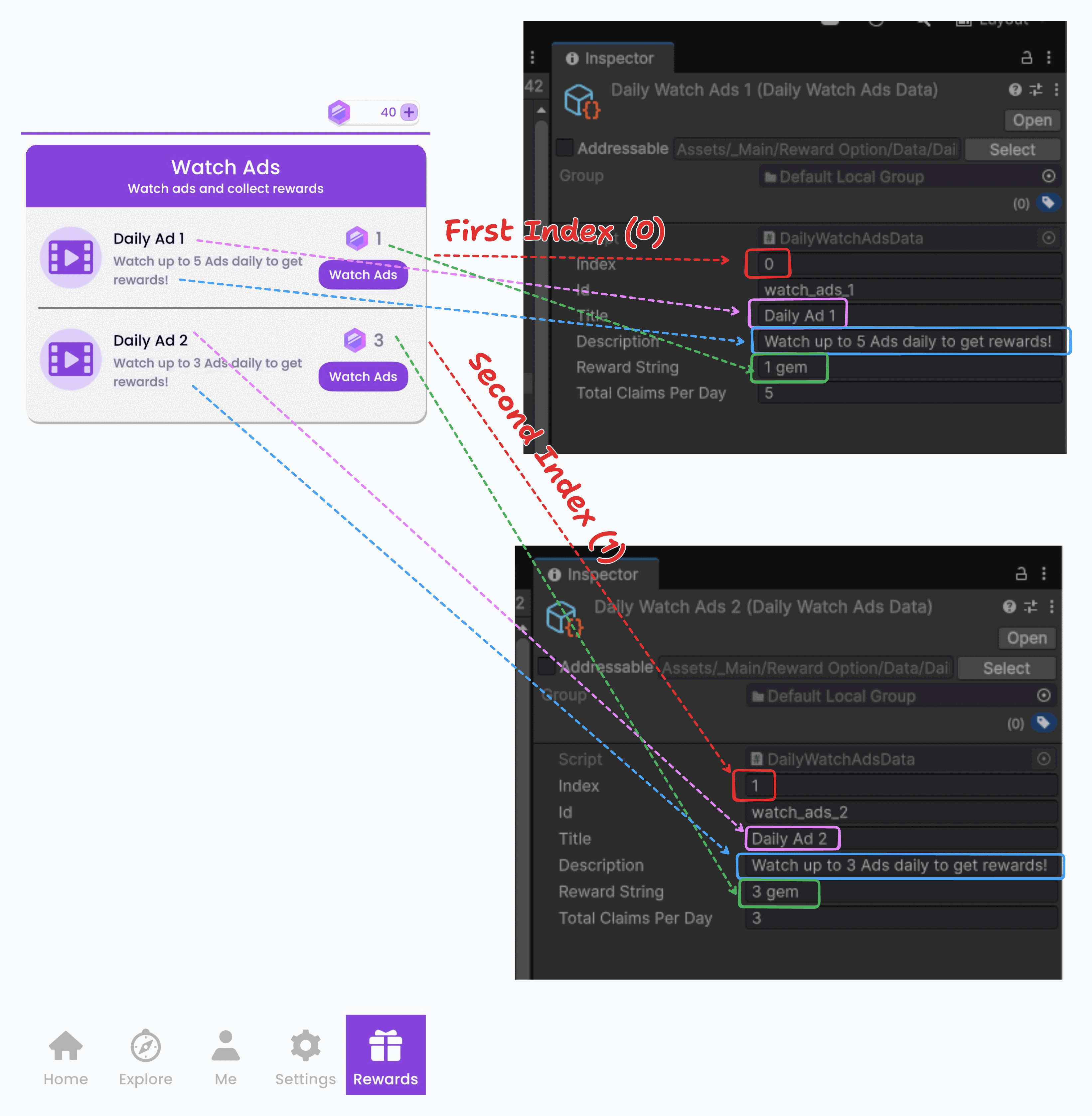
| Index | Integer | Determines the display order of this specific ad on the Rewards Page (e.g., 0 is first, 1 is second). |
| Id | String | A unique identifier used to track save data and claim limits. Format: Must be in snake_case (e.g., watch_ads_1). |
| Title | String | The header text displayed to the player. |
| Description | String | A brief text explaining the reward. |
| Reward String | String | Defines the payout. Must follow the format: <amount> <currency>. Example: 10 gems |
| Total Claims Per Day | Integer | The maximum number of times a player can watch this ad and collect the reward within a 24-hour period. |
Visual Reference
The image below illustrates how the data properties map directly to the in-game User Interface:
Creating New Watch Ads
Follow these steps to add a new reward opportunity to the game.
Step 1: Create the Data Asset
You must create and store the new asset inside the Assets > _Main > Reward Option > Data folder. If placed elsewhere, the system may not detect it.
- Navigate to
Assets > _Main > Reward Option > Data. - Right-click in the folder background.
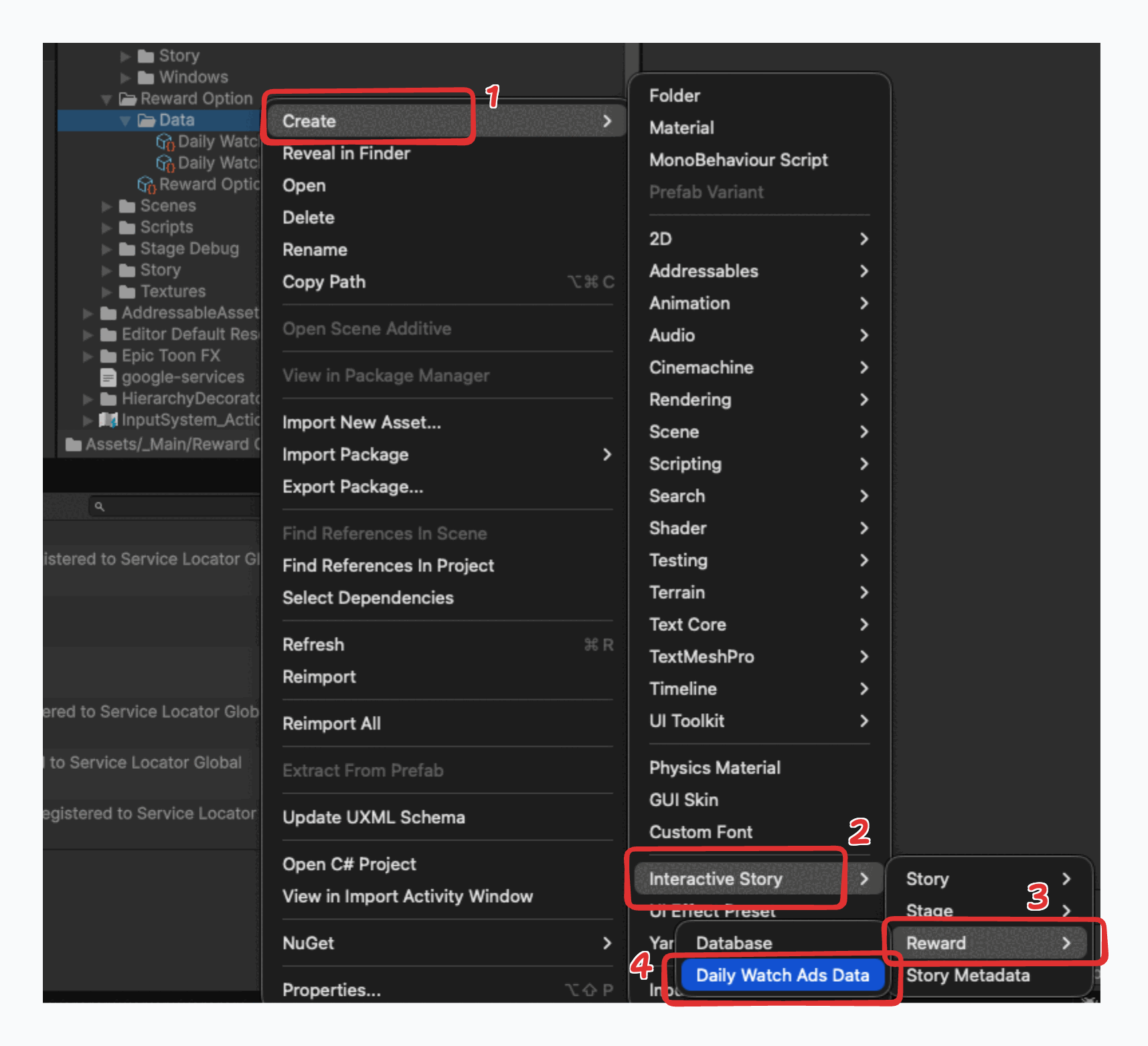
- Select Create > Interactive Story > Reward > Daily Watch Ads Data.
- Name your file appropriately (e.g.,
Daily Watch Ads 3).
Step 2: Configure Properties
Select your new asset and fill in the fields (Index, Id, Title, Reward String, etc.) as detailed in the Data Properties table above.
Step 3: Register in Database
For the new data to appear in the game, it must be added to the main list.
- Go to
Assets > _Main > Reward Option. - Select Reward Option Database.
- Locate the list named Daily Watch Ads References.
- Drag and drop your new data asset into this list.
Step 4: Test
Once configured, open the MenuScene.scene in Unity and press Play to verify that the new reward option appears and functions correctly on the Daily Rewards page.