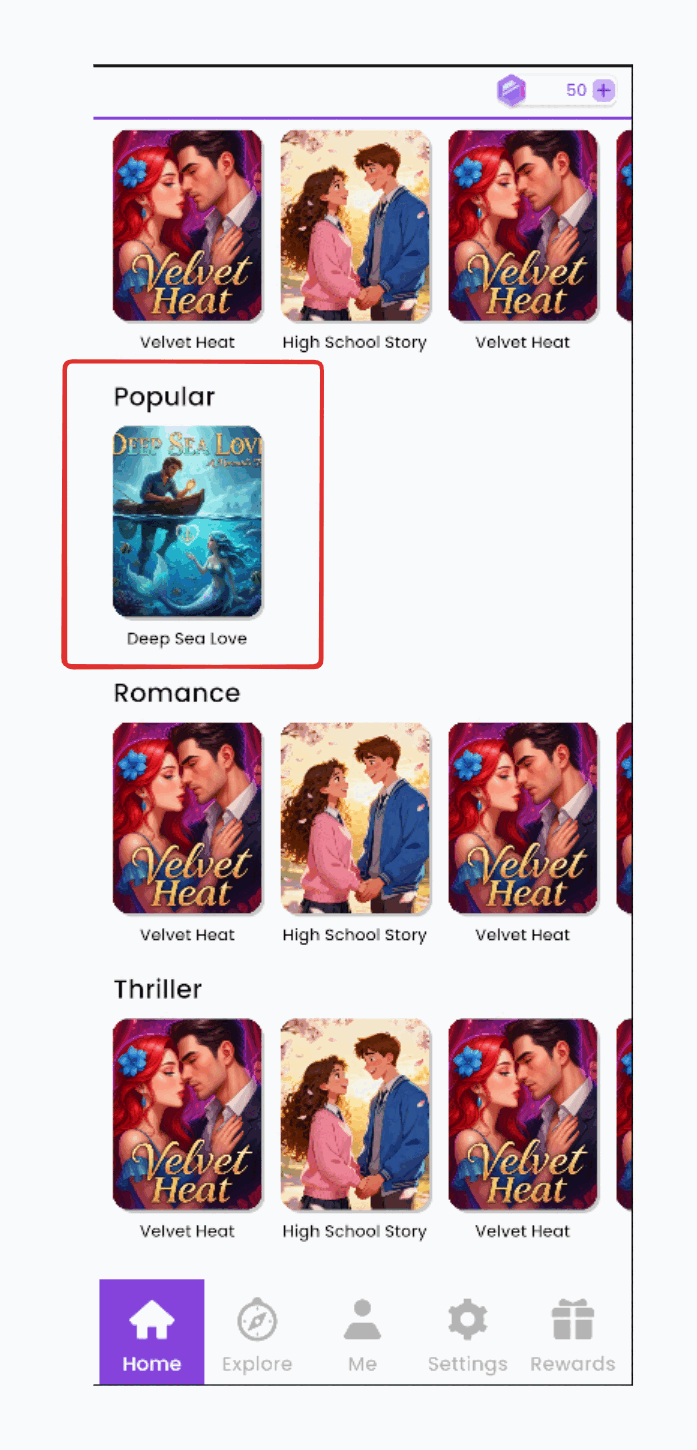
Section
A Section is a collection of stories grouped together under a specific category. To display stories in the game, you must first organize them into a Section file.
Each section you create will appear as a distinct category on the game's home screen, allowing players to easily browse different story collections.
Examples:
- Editor's Picks
- New Releases
- Popular Stories
- Drama
Steps:
-
Navigate to your story's
Sectionsfolder inAssets/_Main/Story/Sections -
You can either use an existing one or create a new section.
- To use an existing section, simply click on the section file to view it in the
Inspectorpanel.
- To create a new section, right-click and select
Create > Interactive Story > Section\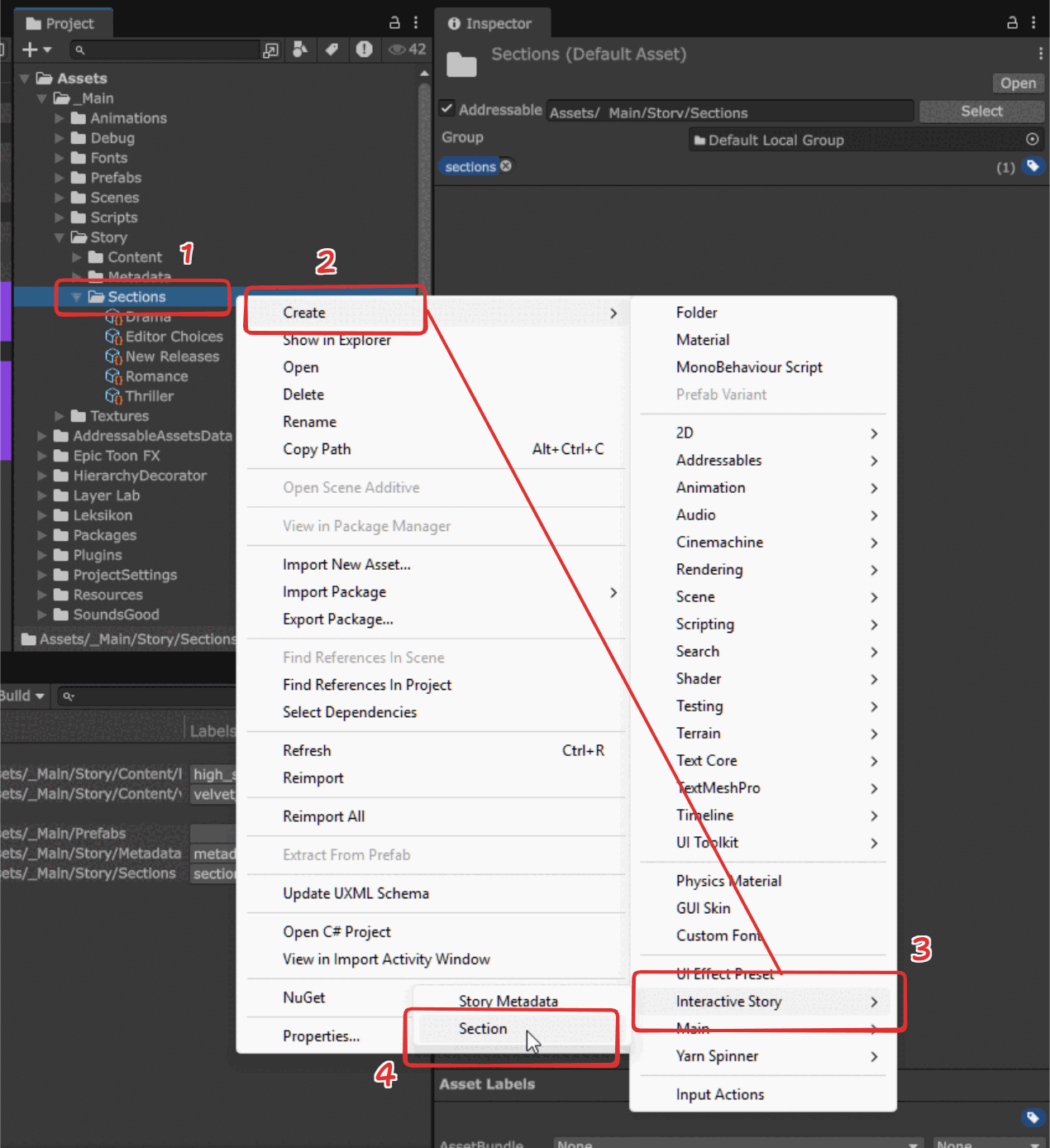
- To use an existing section, simply click on the section file to view it in the
-
If you are creating a new section, you can name the file using your desired section title. You may use the pre-created files as a reference.
-
Select the section to edit the properties in the
Inspectorpanel. -
In the
Idfield, enter a unique identifier for the section. This ID is used internally by the game to reference the section.
Eg:editors_picks,new_releases. -
In the
Titlefield, enter the name of the section as you want it to appear in the game.
Eg:Editor's Picks,New Releases. You may see that the title will be rendered in menu as shown below: \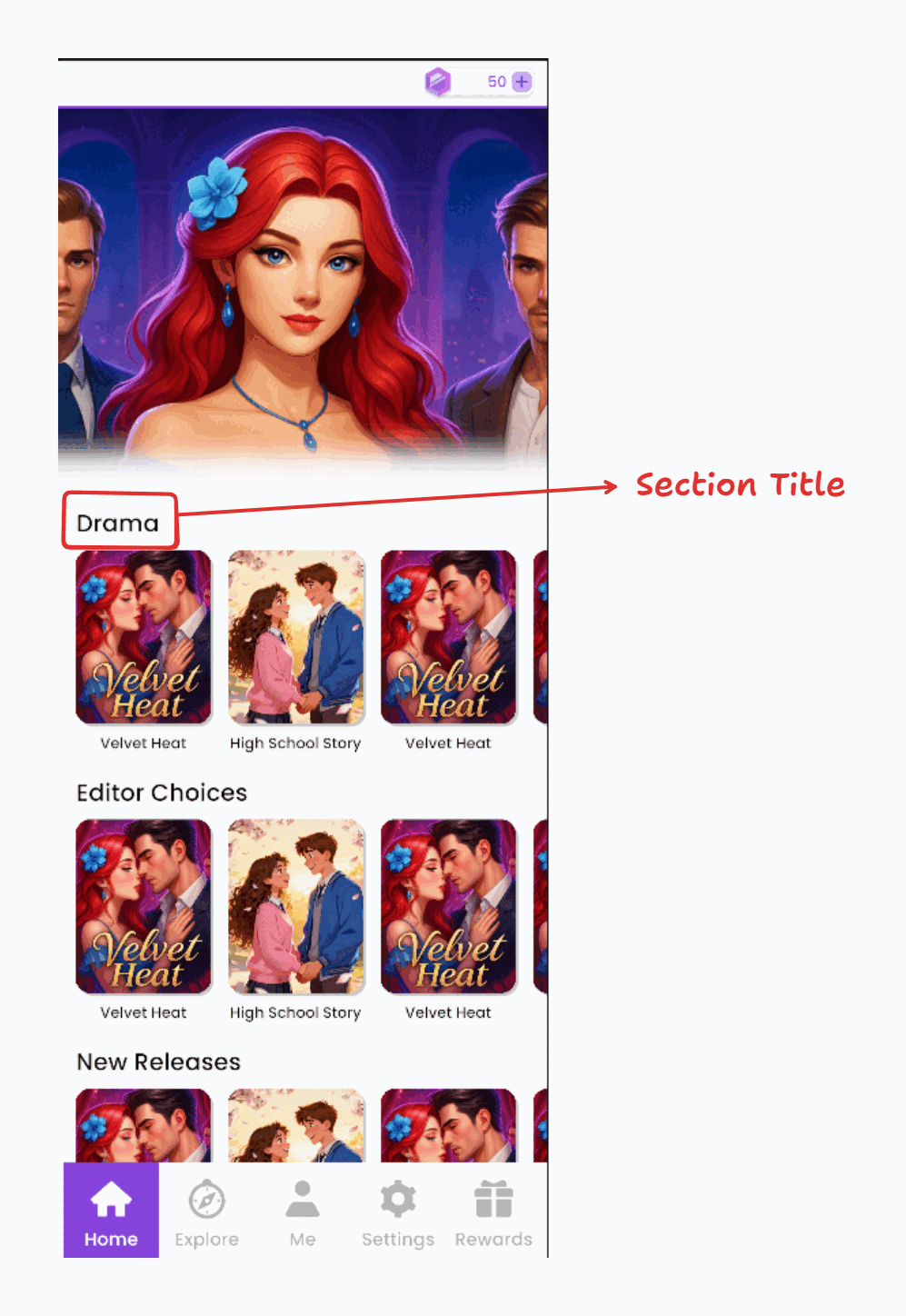
-
In the
Story Metadatalist, you need to specify which stories belong to this section by clicking the+button to add a new entry. After that, drag and drop the Story Metadata file you created earlier into the newly created entry.
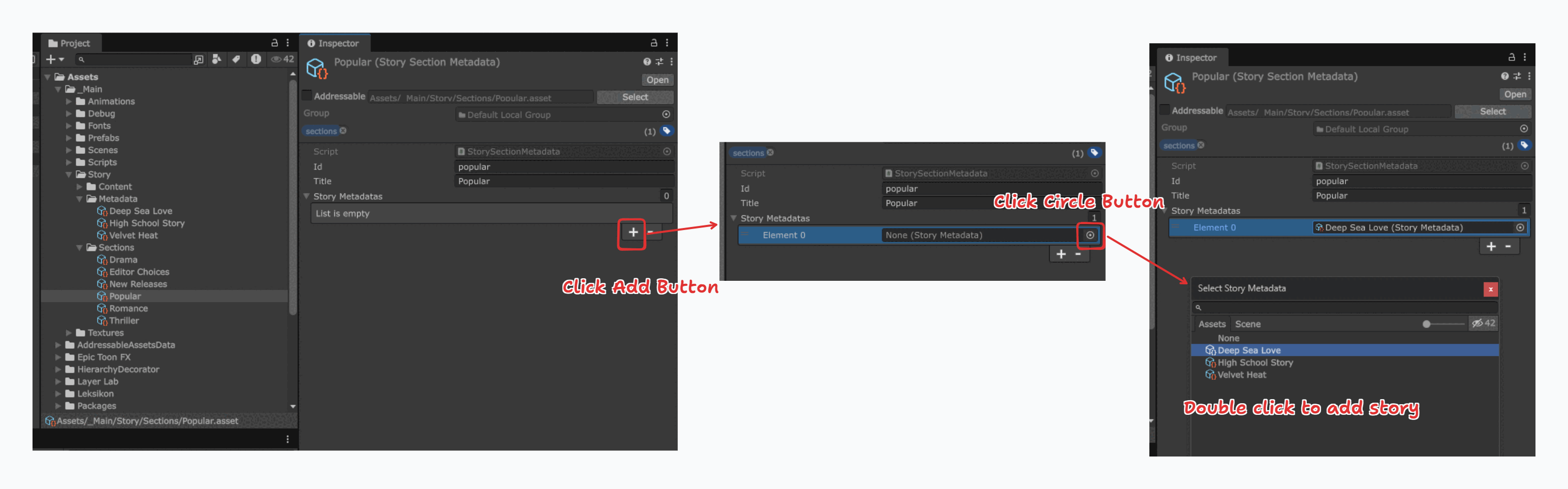
-
Repeat step 7 to add more stories to the section if needed.
-
Your section is now created and will appear in the game's home screen.
-
To test your section, navigate to
InitScene.sceneinAssets/_Main/Scenesand double-click to open it. Then, click thePlay Buttonat the top of the Unity Editor. The game will start in theGamewindow, and you should see your section listed on the home screen.