Testing Your Story
Ensuring your story plays correctly is a crucial part of the development process. There are two primary ways to test your content in the Interactive Story App:
- Full Playthrough: Using
InitScene.sceneto test the game flow from the very beginning. - Specific Chapter Testing: Using
StageScene.sceneto jump directly into a specific story or chapter.
1. Init Scene (Full Playthrough)
Playing from the InitScene simulates a fresh launch of the game. It will start the application from the splash screen or main menu, ignoring any debug overrides. This is ideal for testing the full user experience exactly as a player would see it.
Steps to Play:
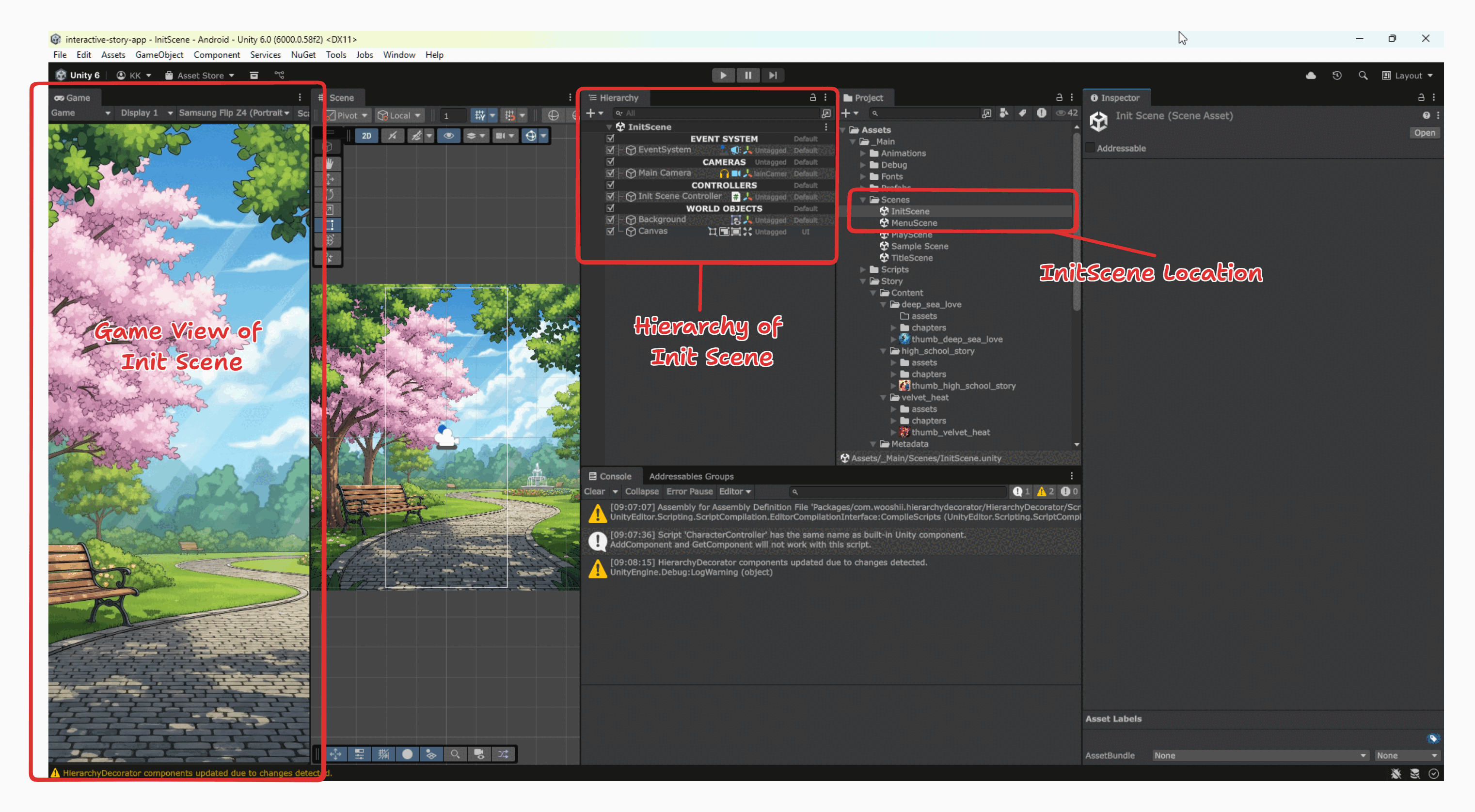
- In the Project panel, navigate to the
Assets/_Main/Scenesfolder. - Double-click
InitScene.sceneto open it. - You should see the initial entry point in your Scene view:
- Click the Play Button at the top of the Unity Editor.
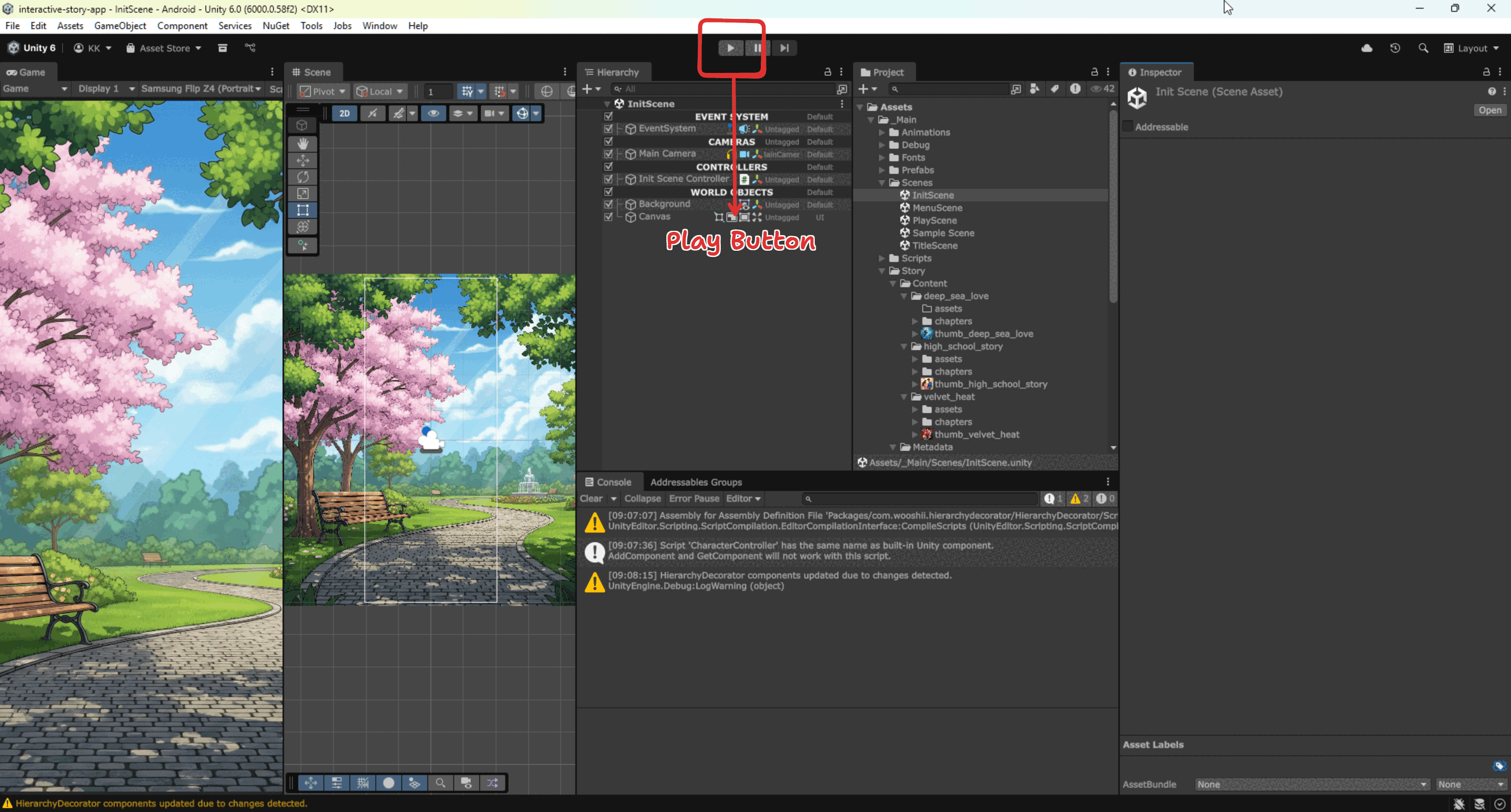
- The game will launch in the Game window.
2. Stage Scene (Debug Testing)
Playing from the StageScene allows you to bypass the main menu and load a specific Story and Chapter immediately. This is the most efficient way to iterate on specific scenes or debug new content without playing through the entire game from the start.
Steps to Configure and Play:
- In the Project panel, navigate to the
Assets/_Main/Scenesfolder. - Double-click
StageScene.sceneto open it.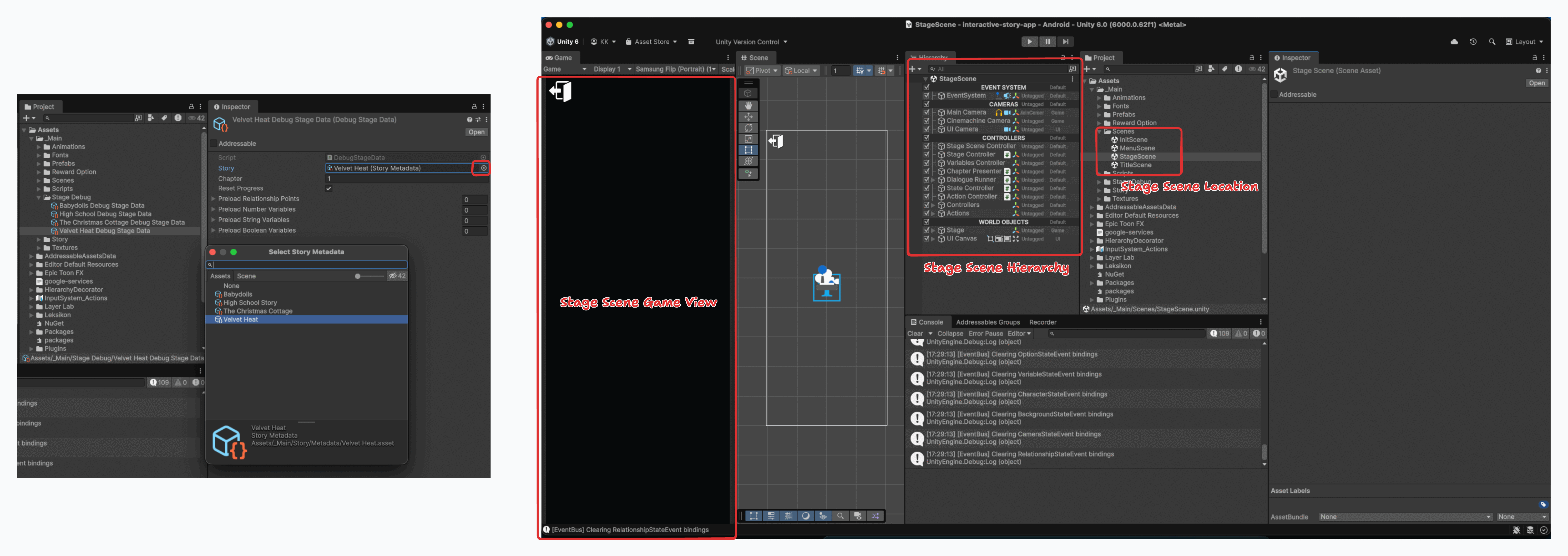
- Navigate to the
Assets/_Main/Stage Debugfolder in the Project panel. - Locate the ScriptableObject named Debug Stage Data. Click it to view its settings in the Inspector panel.
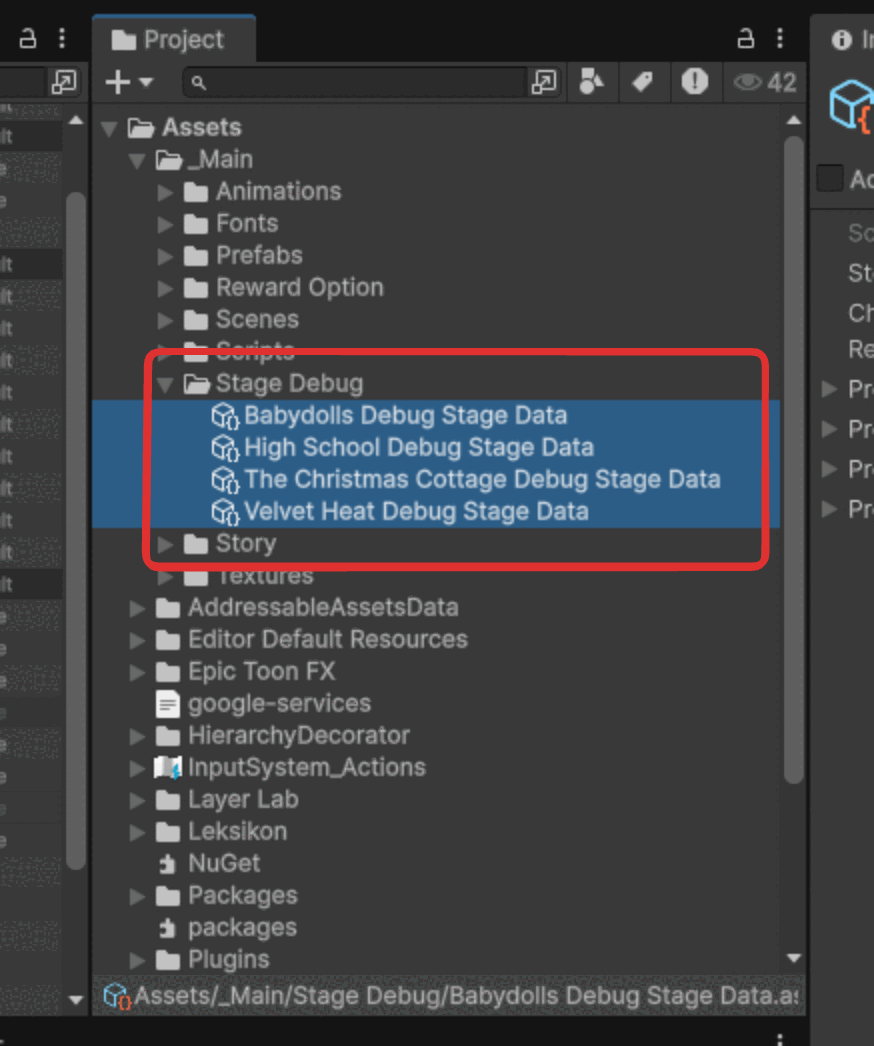
- Configure the settings in the Inspector to choose which part of the story to test (see parameters below).
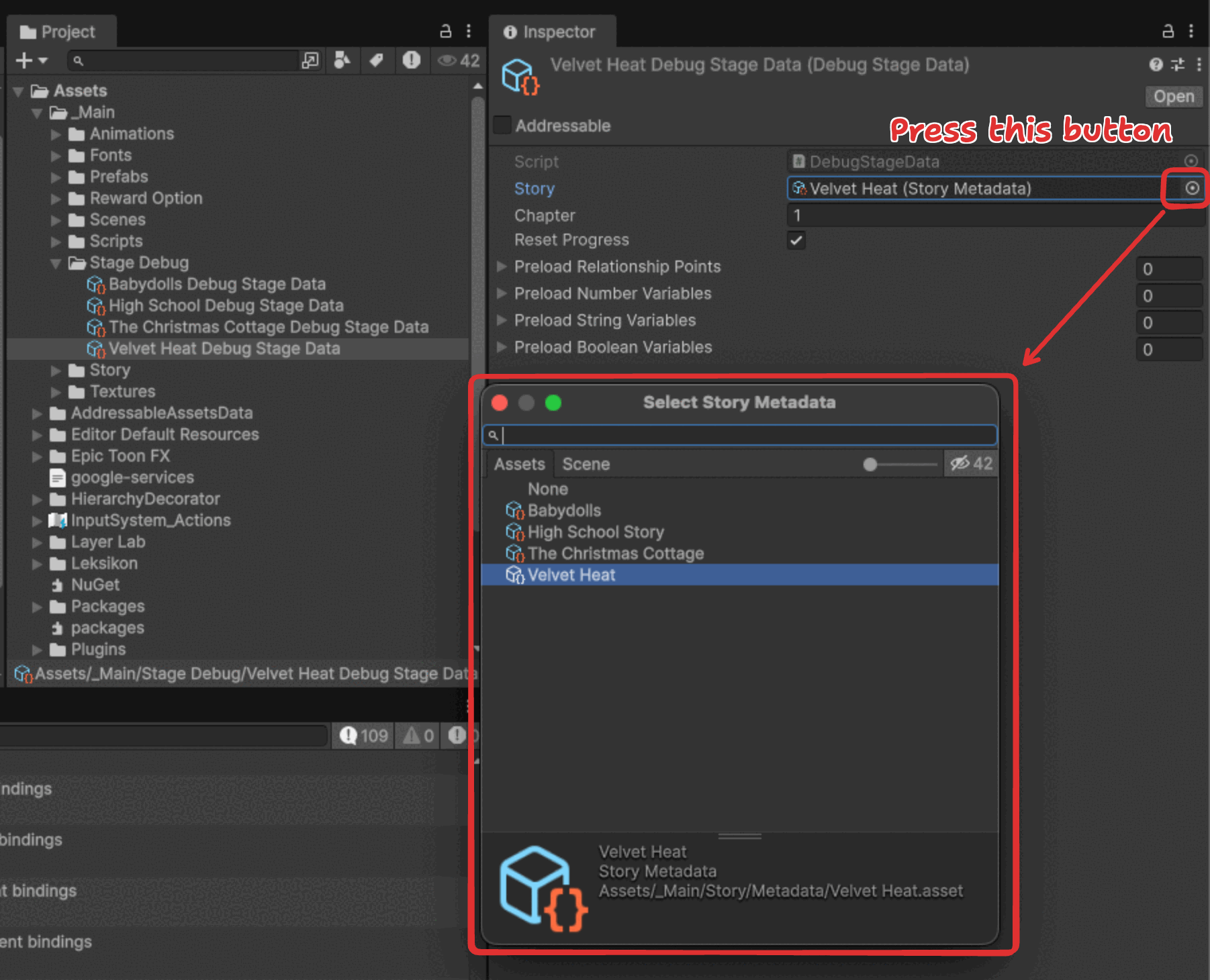
Debug Configuration Parameters
| Property | Type | Description |
|---|---|---|
| Story | Dropdown | Select the specific story title you wish to test. |
| Chapter | Number | The specific chapter number you want to load. Example: Enter 1 to play chapter_1, or 10 to play chapter_10. |
| Reset Progress | Checkbox | Enabled: Simulates a fresh start (clears save data for this story). Disabled: Continues from where you left off (loads existing save variables). |
You must ensure that the Chapter number you enter actually exists within the selected Story.
If you enter 10 but only 5 chapters exist, the system will look for a file that is not there, causing errors in the Unity Editor.
Launching the Test:
- Once you have modified the Debug Stage Data, click the Play Button at the top of the Unity Editor.
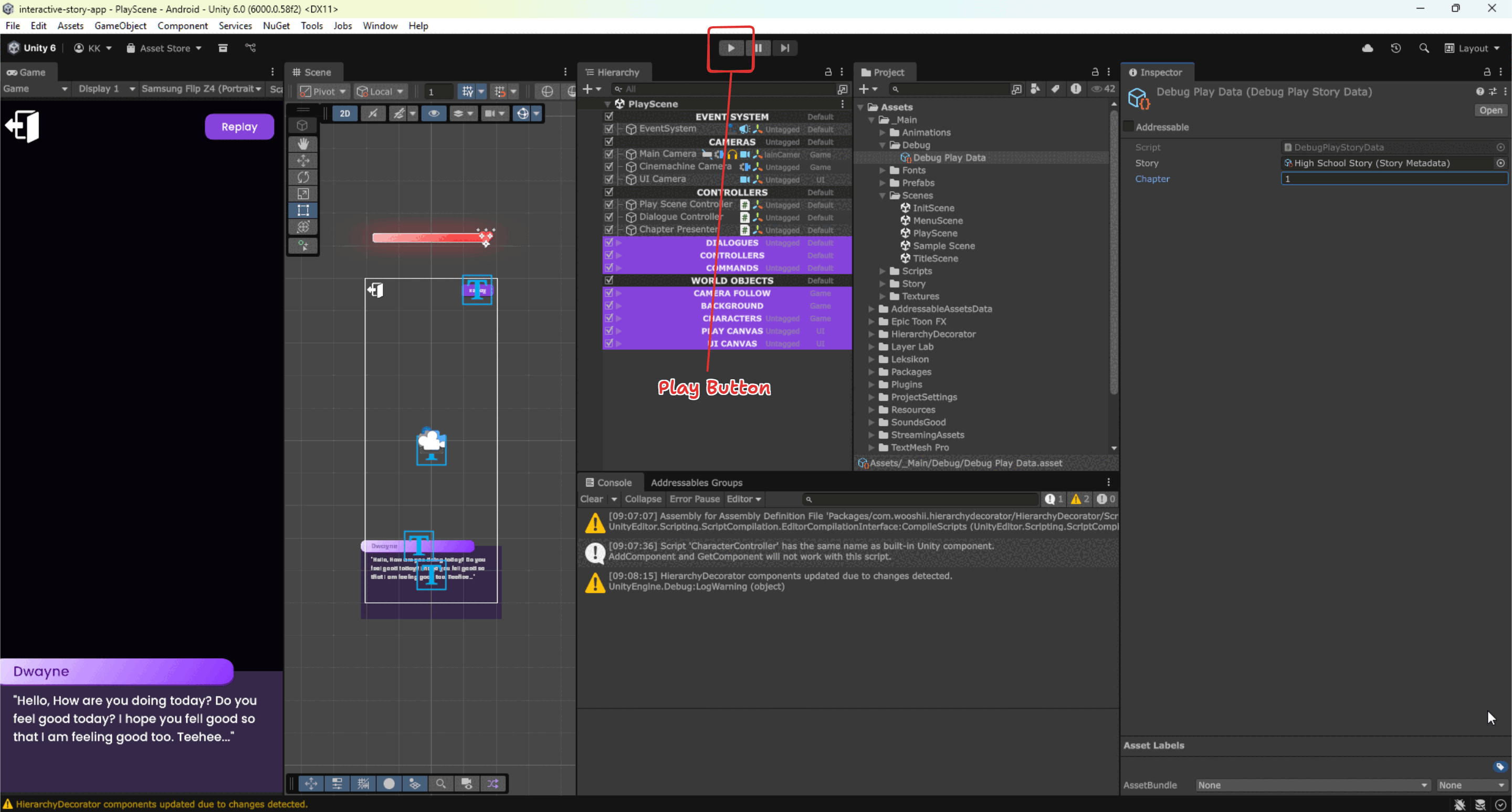
- The game will immediately launch your selected story and chapter in the Game window.