Yarn Script
Yarn script contains the actual story dialogue and choices.
Steps:
- Navigate to your story's
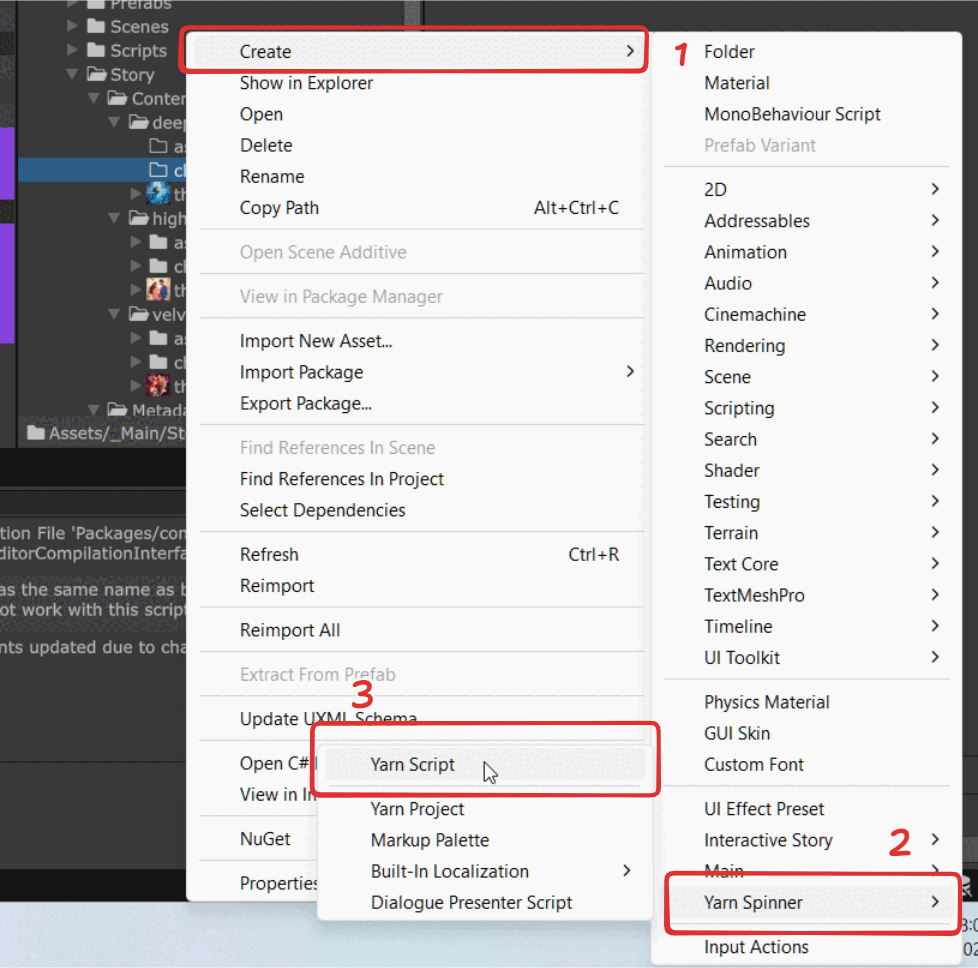
chaptersfolder inAssets/_Main/Story/Content/[your_story]/chapters - Right-click and select
Create > Yarn Spinner > Yarn Script
- Name the file using your chapter title (no spaces - use underscores instead)
Eg:chapter_1,chapter_11 - To edit the Yarn file, you need to open it in Visual Studio Code (VS Code). \
- Open VS Code
- In VS Code, go to
File > Open Folder... - Navigate to your Unity project folder and select it
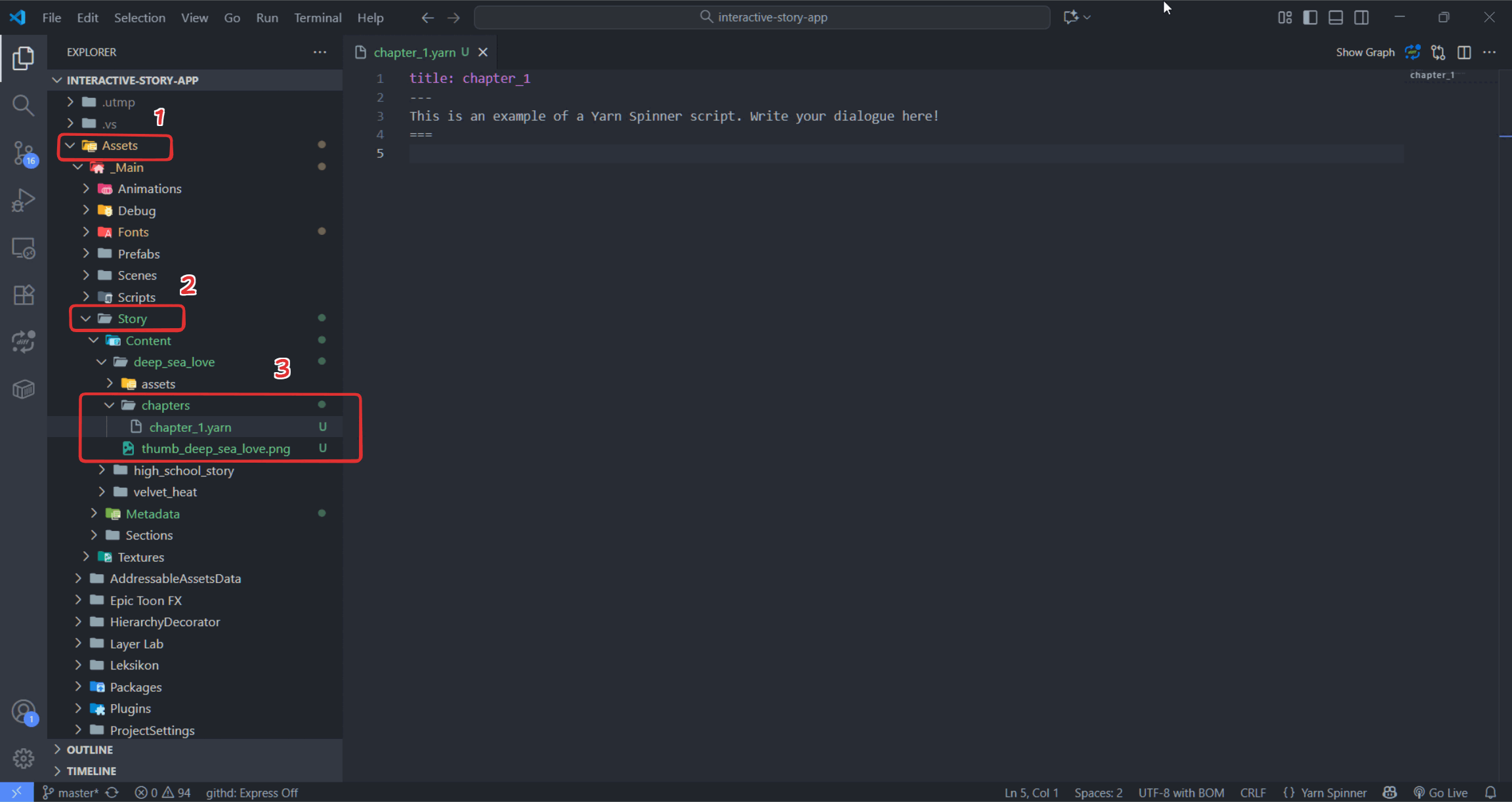
- In VS Code's Explorer panel, navigate to
Assets/_Main/Story/Content/[your_story]/chapters - Click on your Yarn file to open it for editing
- Write your story content using Yarn syntax (this will be covered in the next section)
Eg: (you can copy and paste this example into your Yarn script file)title: Start
---
Welcome to the story!
-> Go to the next part
===
title: NextPart
---
This is the next part of the story.
-> End the story
===
title: End
---
The end. Thanks for playing!
=== - Save the file in Visual Studio Code (
Ctrl+SorCmd+S) - Return to Unity Editor
- To link the chapter you have just created to your story, you need to add chapter into the Story Metadata file you created earlier.
- Navigate to your story's
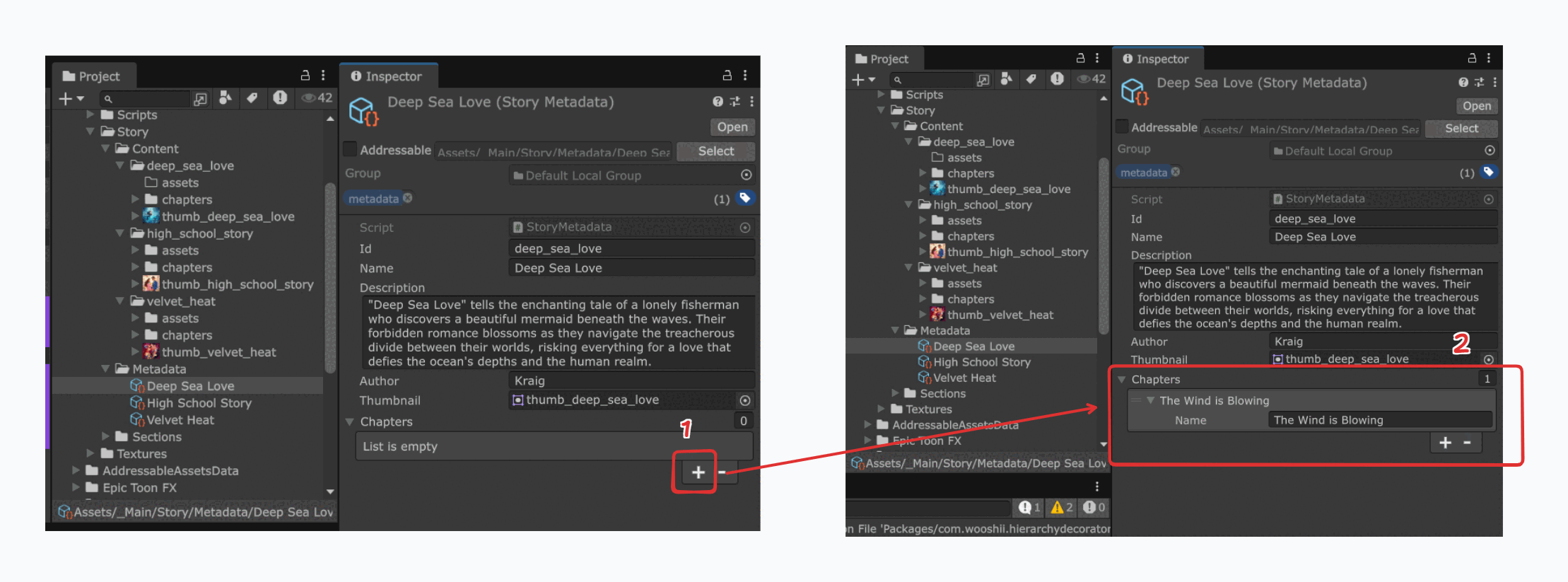
Metadatafolder inAssets/_Main/Story/Metadata - Click on your Story Metadata file to view it in the
Inspectorpanel - In the
Chaptersfield, click the+button to add a new entry - Write the title of the chapter.
- Navigate to your story's
- Your Yarn file script is now part of your story content.